Best WiFi Barcode Scanners for Retail and Inventory IT Buyers
- Sosa Solutions NYC
- Aug 15
- 11 min read
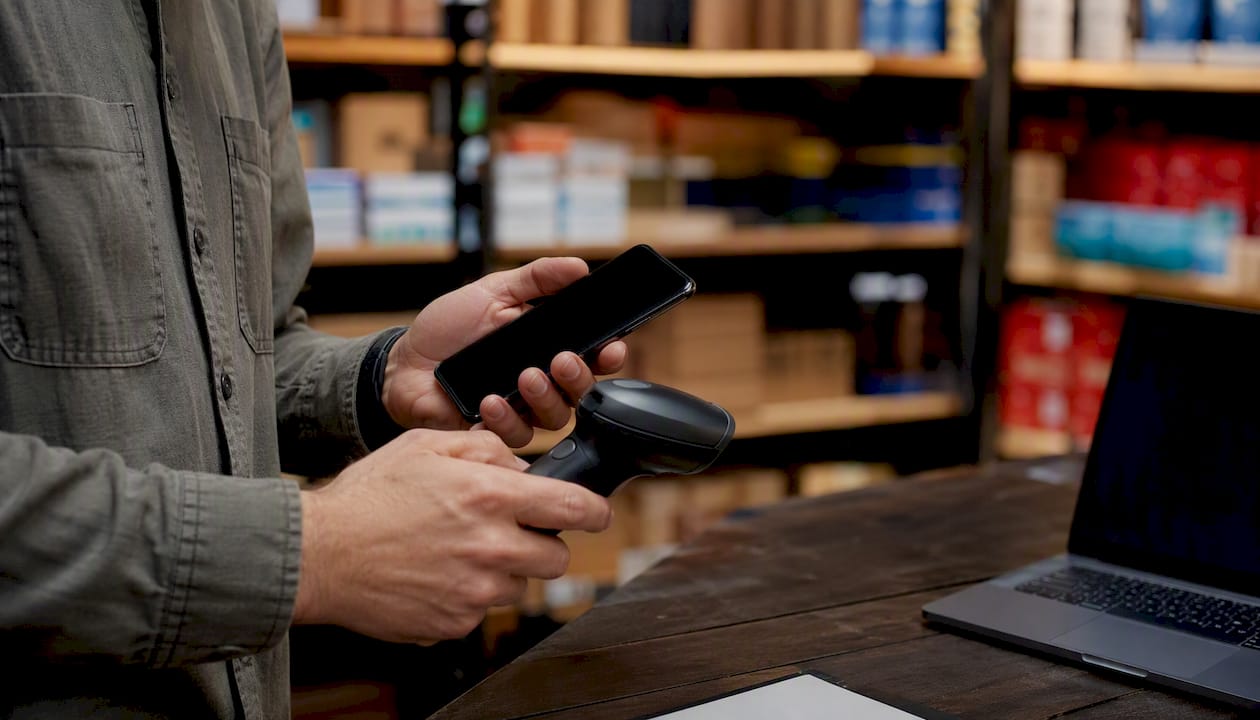
For most retail and inventory deployments, a Wi-Fi-capable 2D imager with TCP/UDP or MQTT transport, HID fallback, and WPA2/WPA3 support gives the best balance of flexibility and long-term manageability. Windows POS HID, Zebra DataWedge, and WPA3 network segmentation are the three integration anchors worth confirming before any purchase order goes out.
Top picks by use case:
Best for point-of-sale counters: Zebra DS8178 or Honeywell Xenon XP 1952 (cradle-based, HID or HID POS, sub-second decode)
Best for warehouse/multi-user Wi-Fi: Zebra LI3678 or Honeywell Granit 1991i (TCP/UDP, MQTT, SSI, rugged chassis)
Best budget Wi-Fi-capable: Netum Wi-Fi 2D imager (TCP/UDP/MQTT, local buffer, under $100 street price)
Best rugged/industrial: Datalogic Gryphon GBT4500 or Honeywell Granit 1991i (IP65+, 2-meter drop spec)
Three specs to lock before you buy: (1) 1D-only vs. 2D imager support, since QR and Data Matrix codes are now common in retail; (2) protocol modes available (HID, USB-COM, SSI, TCP/UDP, MQTT); (3) battery capacity and IP/drop rating for your environment.
Pro Tip: *If your store’s Wi-Fi was designed for POS terminals and not for roaming scanner traffic, run a heatmap walk-test before ordering units in bulk.
Sosasolutionsnyc’s Wi-Fi readiness checklist in the network section below identifies the most common gaps.*
Key Takeaways
A Wi-Fi-capable 2D imager with TCP/UDP or MQTT support, WPA2/WPA3 security, and HID fallback covers the majority of retail and inventory deployment scenarios without locking you into a single integration path.
Point | Details |
Lock protocol support first | Confirm HID, USB-COM, SSI, and TCP/UDP or MQTT availability before any purchase order. |
Test symbology before scaling | Pilot three units with real in-store barcodes; factory defaults often miss custom or damaged codes. |
Validate the network first | Run a Wi-Fi heatmap targeting -65 dBm minimum before ordering units in bulk. |
Budget for TCO, not just unit price | Cradles, spare batteries, staging labor, and management licensing typically add 30–60% to per-unit cost. |
Sosasolutionsnyc for managed rollouts | Sosasolutionsnyc provides heatmap surveys, device staging, and on-site deployment for NY and FL retailers. |
Table of Contents
How leading barcode scanner wifi models compare across brands
How to choose the right wireless scanner: a procurement checklist
What barcode scanners actually cost and what drives total spend
Does your Wi-Fi network actually support reliable barcode scanning?
Sosasolutionsnyc handles the network and deployment work so you can focus on the rollout
How leading barcode scanner wifi models compare across brands
Seven brands dominate U.S. retail and inventory procurement: Zebra, Honeywell, Datalogic, Socket Mobile, ProGlove, Unitech, and Netum. Each targets a different buyer profile, and the differences show up most clearly in protocol depth, ruggedness, and accessory ecosystems.
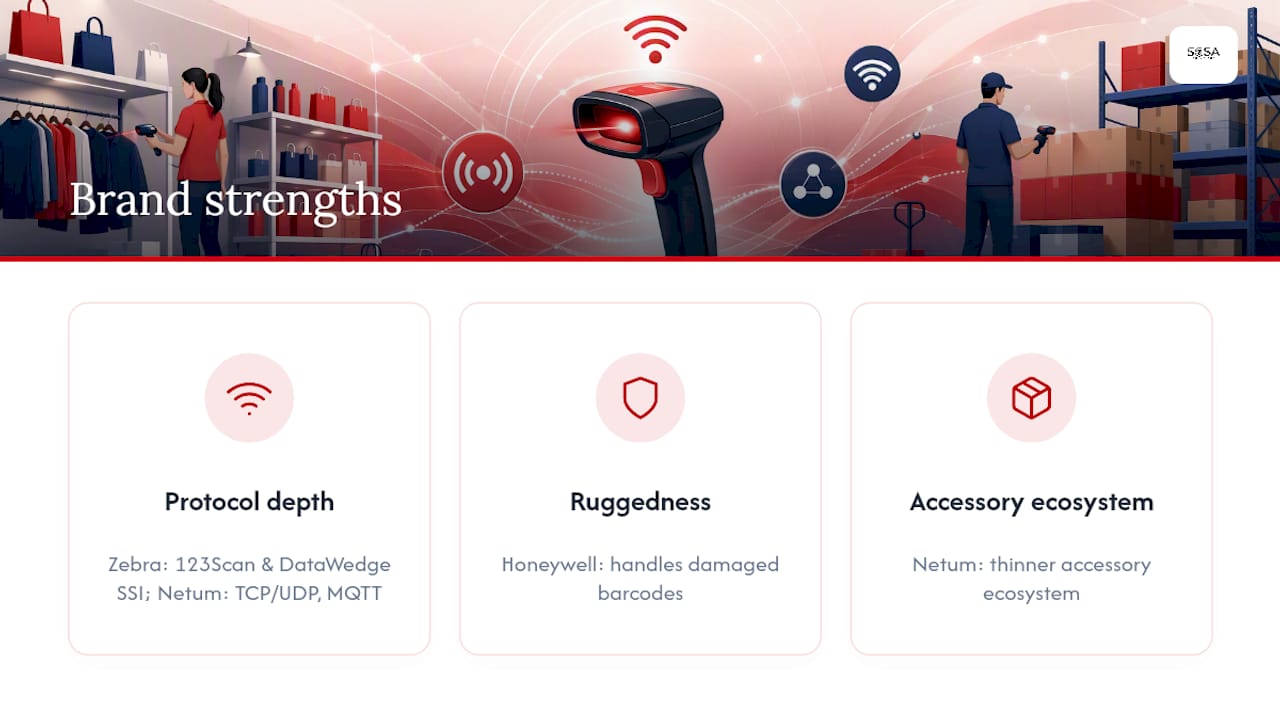
Brand notes for retail IT buyers:
Zebra ships with 123Scan, a PC-based utility that handles configuration barcodes, firmware updates, and remote management generation without touching each unit individually. That alone cuts staging time on large rollouts. The DS8178 pairs over Bluetooth to a cradle that presents as a USB-HID or USB-COM device to the host. DataWedge supports SSI over USB CDC for Android integrations where keyboard-wedge mode is not enough.
Honeywell scanners tend to have the widest OS compatibility out of the box, including legacy Windows CE and modern Android. The Xenon XP line handles aggressive scanning angles and damaged barcodes well, which matters in high-throughput checkout lanes.
Datalogic is strong on multi-interface cradles. The Gryphon GBT4500 base station can switch between USB-HID and RS-232 without swapping cables, useful when a retailer runs mixed POS hardware.
Socket Mobile requires its companion app or SDK for anything beyond basic HID pairing. That extra step pays off for iOS-heavy mobile POS deployments, where the Application Mode SDK gives per-scan metadata and connection-state callbacks that HID cannot provide.
ProGlove is the only wearable in this group. The MARK 2 sits on the back of a glove and scans on a button press, keeping both hands free. It is overkill for a checkout counter but genuinely changes throughput in pick-and-pack warehouse lines.
Unitech MS822B ships pre-paired to its 2.4G dongle, so it is plug-and-play for most counter setups. The product page lists 100 m line-of-sight 2.4G range and 40+ hours of operating time, which is the longest battery spec in this group. Real-world range through shelving and walls drops to roughly 20–40 m, consistent with what HDWR’s setup documentation notes for 2.4G models.
Netum is the clearest example of a true barcode scanner wifi device: it connects directly to your SSID and publishes scans via TCP/UDP or MQTT to a cloud endpoint, with local buffering when the connection drops. The tradeoff is a thinner accessory ecosystem and lighter ruggedness versus enterprise brands.
Pro Tip: Advertised wireless range is always measured in open air. Test with the actual floor layout before finalizing AP placement.
How to choose the right wireless scanner: a procurement checklist
Prioritize these criteria in order. The first two determine whether the scanner will work at all in your environment; the rest affect long-term cost and manageability.
Symbology support. Confirm the scanner reads every barcode type your store or warehouse actually uses: Code 128, Code 39, UPC-A/E, EAN, QR, Data Matrix, PDF417. A 1D-only scanner will fail on any 2D code. Ask the vendor for a symbology matrix, not just “supports 2D.”
Protocol and host-interface modes. Verify which modes are available: HID keyboard, HID POS, USB-COM (virtual serial), SPP, SSI/SNAPI, and TCP/UDP or MQTT for native Wi-Fi models. USB-HID is driverless and works for simple POS entry, but HID POS and SPP-SSI are required for programmatic control in WinRT or enterprise inventory systems.
Network security. For Wi-Fi-native scanners, confirm WPA2-Enterprise or WPA3 support. Devices that only support WPA2-Personal (PSK) are a liability on a shared retail network.
Battery life and charging logistics. A scanner rated for 12 hours may only last 8 in a busy warehouse with constant scanning. Ask for typical-use figures, not peak. Factor in how many spare batteries or cradles you need per shift.
Ruggedness. Match IP rating and drop spec to the environment. A checkout counter needs IP42 at minimum; a warehouse floor needs IP65 and a 1.8 m drop rating.
Accessory availability. Cradles, spare batteries, belt clips, and holsters add $30–$150 per unit. Confirm US availability and lead times before committing to a model.
Remote management and firmware tools. For deployments above 10 units, a vendor utility like Zebra’s 123Scan or Honeywell’s EZConfig dramatically reduces staging time and ongoing firmware maintenance. Ask whether the tool is included or licensed separately.
Vendor questions to ask before signing a PO:
Does this model support TCP/UDP or MQTT over Wi-Fi, or only Bluetooth/2.4G?
Which host-interface modes are available: HID, USB-COM, HID POS, SPP, SSI, SNAPI?
What is the firmware update path, and is remote management available?
What is the US warranty term, and is advance exchange or depot repair available?
Are configuration barcodes or a PC utility included for bulk staging?
Buyer profile to connectivity mapping:
POS counter: HID keyboard or HID POS via cradle (USB-HID is driverless and sufficient for most retail POS software)
Warehouse multi-user: SSI/COM or Wi-Fi with TCP/UDP or MQTT; segment scanner traffic on a dedicated SSID
Mobile associates (iOS/Android): BLE or SPP with vendor SDK; confirm OS version compatibility before purchase
Pro Tip: Before procurement sign-off, test three sample units on your actual store floor with your real barcodes. Run a five-minute Wi-Fi walk test from the receiving dock to the sales floor. That single step catches the most common deployment failure: symbology settings that do not match in-store codes.
Setting up and integrating your wireless barcode scanner
Wi-Fi scanners typically require SSID, WPA2/WPA3 credentials, and either a static IP or DHCP reservation, then registration with a host server via TCP/UDP or MQTT. Bluetooth and 2.4G models are simpler but have their own pairing and driver steps.
Wi-Fi (TCP/UDP or MQTT) setup:
Connect the scanner to your PC via USB and open the vendor configuration utility (or print the vendor’s configuration barcode sheet).
Scan the SSID and password entry barcodes, or enter credentials via the utility.
Set the transport mode to TCP/UDP or MQTT and enter the host server IP and port.
Assign a DHCP reservation or static IP in your router/DHCP server for the scanner’s MAC address.
Register the device on the host application and confirm scan data is arriving at the correct endpoint.
Test with every barcode type in your inventory before deploying to the floor.
Bluetooth/SPP setup:
Put the scanner in pairing mode (usually a button hold or a pairing barcode).
On the host device, open Bluetooth settings and pair. Windows will install a virtual COM port for SPP or present the device as a keyboard for HID.
For HID POS or SPP-SSI on Windows, confirm the device appears correctly in Device Manager and that the POS application is pointed at the right COM port.
Socket Mobile devices may require the companion app or SDK to switch between HID and Application Mode.
2.4G dongle + cradle:
Plug the USB dongle into the host. The Unitech MS822B and similar models ship pre-paired, so the scanner is ready immediately.
If re-pairing is needed, scan the pairing barcode on the cradle or in the manual.
The host sees the scanner as a USB-HID keyboard by default. To switch to USB-COM, scan the mode-change barcode from the vendor’s programming guide.
USB-HID vs. USB-COM (wired reference):
USB-HID requires no driver and works immediately on Windows, macOS, and Linux. USB-COM (virtual serial) needs a driver and a COM port assignment but gives the host application direct control over decoding parameters. For enterprise inventory software, USB-COM or SSI is usually the right choice. Zebra’s DS8178 quick start guide shows the auto-host-detect cable and refers buyers to 123Scan for electronic programming and firmware updates.
For Android integrations, DataWedge manages decoder selection and supports Code 39, Code 128, Data Matrix, QR, PDF417, and UPC/EAN, among others. USB cradles may need SSI over USB CDC mode enabled in DataWedge to function correctly.
Common troubleshooting:
Symbology mismatch: scanner beeps but no data appears. Enable the required symbology in the vendor utility or by scanning the enable barcode from the programming guide.
Pairing failure: power-cycle both devices, clear the pairing history, and re-pair from scratch.
Wrong COM port: check Device Manager, confirm the application is pointed at the correct port number.
Range-related packet loss on Wi-Fi: check signal strength at the scan point (target -65 dBm or better). Reposition the AP or add one.
Enter-after-scan missing: most scanners ship with Enter (suffix) enabled by default per HDWR’s setup documentation; if it is missing, scan the suffix-enable barcode.
POS and inventory software integration checklist:
Item | What to confirm |
Suffix/prefix | Enter key or tab appended after scan |
Character encoding | UTF-8 or ASCII per your software’s requirement |
Symbology enabled | All types present in your inventory |
Host-interface mode | HID, COM, or SSI per your software’s API |
Scan-to-field behavior | Cursor advances to next field after scan |
What barcode scanners actually cost and what drives total spend
Price bands (US list estimates):
Budget Wi-Fi-capable (Netum, entry-level 2D): $80–$150 per unit. Thin accessory ecosystem, basic ruggedness, suitable for light-duty inventory or back-office receiving.
Mid-market 2.4G/Bluetooth hybrid (Unitech, Datalogic Gryphon): $150–$420 per unit. Pre-paired dongles, multi-interface cradles, 1–3 year warranties standard.
Enterprise rugged Wi-Fi/BT (Zebra, Honeywell Granit): $350–$900+ per unit. Full protocol suite, IP65, 2 m drop, remote management, advance-exchange support.
Total cost of ownership factors:
Cradles: $40–$120 each; plan one per scanner for counter deployments
Spare batteries: $25–$60 each; budget two per scanner for multi-shift warehouses
Dongles (2.4G or Bluetooth USB-A/USB-C): $15–$40 each; Bluetooth USB dongles add flexibility for hosts without native Bluetooth
Remote management or MDM licensing: $10–$30 per device per year for enterprise platforms
Extended warranty or service plans: 10–20% of unit cost annually for advance-exchange coverage
Staging and onsite setup labor: $50–$150 per device for professional configuration and deployment
For deployments above 20 units, a professional store technology deployment engagement typically pays for itself by reducing returns, re-configuration calls, and rollout delays. Below that threshold, most IT teams can self-stage with vendor utilities and a solid configuration barcode set.
Does your Wi-Fi network actually support reliable barcode scanning?
Most scanning failures in retail are network problems, not scanner problems. Before a large rollout, validate these items in order.
Run a Wi-Fi heatmap. Walk the entire sales floor and receiving area with a heatmap tool. Target a minimum of -65 dBm RSSI at every scan point. Gaps below -70 dBm will cause packet loss and missed scans.
Create a dedicated scanner SSID. Segment scanner traffic from POS terminals, guest Wi-Fi, and surveillance cameras. This prevents bandwidth contention and simplifies QoS policy.
Enable WPA3 where your scanner models support it. WPA2-Enterprise is the minimum for any Wi-Fi scanner on a retail network. WPA2-Personal (PSK) is acceptable only for isolated, low-risk environments.
Plan channels to avoid co-channel interference. In a dense retail environment, use non-overlapping channels (1, 6, 11 on 2.4 GHz; separate channels on 5 GHz) and confirm AP transmit power is set for the floor size, not maximum.
Apply QoS rules for TCP/UDP and MQTT scanner traffic. Wi-Fi-native scanners that publish via MQTT need consistent low-latency paths. Mark scanner traffic with a higher DSCP value than background data.
Test under real load. Run all scanners simultaneously during a simulated busy period. Packet loss that only appears under load is the most common cause of intermittent scanning failures after go-live.
Signs you need professional network remediation before rollout:
Scanners drop connection when moving between aisles
Scan data arrives out of order or with gaps during peak hours
The existing AP layout was designed for POS terminals only, with no roaming optimization
The store has metal shelving, walk-in coolers, or concrete walls that block signal
Pro Tip: A retail store IT infrastructure review before scanner procurement saves more money than any unit-price negotiation. Fixing AP placement after scanners are deployed costs two to three times more than getting it right before.
Sosasolutionsnyc provides Wi-Fi heatmap surveys, AP placement and cabling, and full network remediation as part of its store opening IT services for retailers in New York and Florida. If your site shows any of the warning signs above, scheduling a heatmap before ordering units is the lower-risk path.
What I’d actually tell a procurement team before they order
The spec sheet comparison is the easy part. What trips up most retail IT rollouts is the gap between what a scanner can do and what the network and software are ready to receive.
My practical recommendation: run a three-unit pilot before committing to a full order. Test your actual barcode types, including any damaged or low-contrast labels from your suppliers. Walk the scanner from the stockroom to the farthest point on the sales floor while watching the signal strength. Confirm that scan data lands in your inventory or POS system in the correct format, with the right suffix and character encoding.
On security: ask every vendor for their firmware update policy and timeline before signing. A scanner that ships with WPA2-Personal and no path to WPA3 is a liability that grows over time. Firmware updates should be part of your managed device policy from day one, not an afterthought.
Sosasolutionsnyc handles the network and deployment work so you can focus on the rollout
Picking the right scanner is a one-time decision. Getting the network, cabling, and device configuration right is what determines whether that scanner performs on day one and year three.
Sosasolutionsnyc delivers Wi-Fi heatmap surveys, AP installation, structured cabling, device staging, and on-site deployment support for retail stores opening or upgrading in New York and Florida. The practical outcomes: shorter rollout timelines, fewer post-launch support calls, and validated scanning coverage across every zone of your floor before a single customer walks in. For IT managers who have already been through a scanner rollout that went sideways, the difference is a pre-deployment site survey versus a reactive troubleshooting engagement after go-live.
To get a scoped estimate for your store opening or scanner deployment, visit the store opening IT solutions page or contact Sosasolutionsnyc directly to schedule a site assessment.
Sources
Platform docs, vendor setup guides, and protocol references for IT teams configuring or evaluating wireless barcode scanners.
Recommended
Comments